# Welcome

## What is Luna?

Luna is a manual budgeting app designed to help people curb spending.

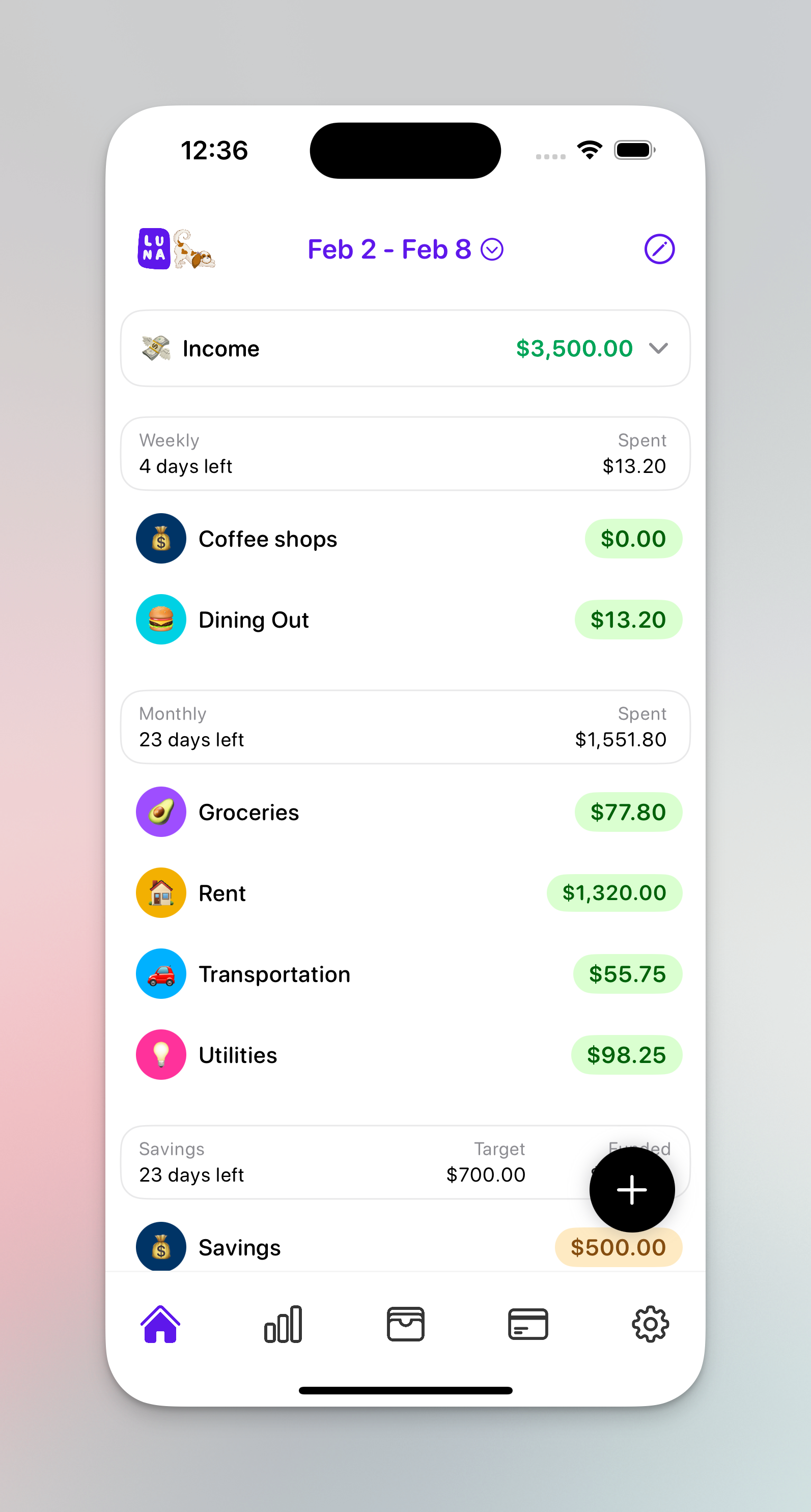
<figure><img src="/files/HjAIqTrGqH9abNLydKB5" alt="" width="375"><figcaption><p>Luna home page</p></figcaption></figure>

## Why does this app exist?

Luna was built by a solo developer ([Chris Raroque](https://lunabudgeting.com/about)) as a fun personal project. You can read more about why it exists [here](https://lunabudgeting.com/about)!

## How is it different from other budgeting apps?

Luna is built on 2 core principles:

1. It is purposely very manual (for your own good)
2. Really good UI and design so the you don't mind it being so manual (and hopefully gets you to stick with it)

Unlike a lot of budgeting apps that try to automate as much as possible, this app takes a different approach by being very manual.&#x20;

Unlike a lot of manual budgeting apps, this one puts a very big emphasis on design/interactions to make the experience as enjoyable as possible.

## Who should use Luna?

If you are someone who is trying to get their spending under control, Luna is a great solution.

If you are someone who has their spending under control but wants to make sure it stays that way (and are willing to put in the time), this is a great way to maintain peace of mind.

### Jump right in

{% content-ref url="/pages/CyH2xJQs9yWJ1S8BYNav" %}
[Getting started](/getting-started/quickstart)
{% endcontent-ref %}


# Getting started

Not sure where to start?

First, I recommend the basics on how budgeting works in Luna:

{% content-ref url="/pages/tiyuyeNxlCFzdKzDccPL" %}
[Budgeting](/features/budgeting)
{% endcontent-ref %}

Then check out Income/Savings tracking:

{% content-ref url="/pages/sQB5Nq5usbgLEp9Mlryt" %}
[Income tracking](/features/budgeting/income-tracking)
{% endcontent-ref %}

{% content-ref url="/pages/Ia8w9v1xzoCwodjO3Sd0" %}
[Savings categories](/features/budgeting/savings-categories)
{% endcontent-ref %}

Then check out Accounts and Reports:

{% content-ref url="/pages/d6UK37yEUXWkJliauveo" %}
[Account tracking](/features/account-tracking)
{% endcontent-ref %}

{% content-ref url="/pages/2UCrNgGo4dzOe1dso4BN" %}
[Reports](/features/reports)
{% endcontent-ref %}

And last check out the smaller features that really help make budgeting easier:

{% content-ref url="/pages/qMiKuXPBO1RE6hKu5aNd" %}
[Recurring expenses](/features/recurring-expenses)
{% endcontent-ref %}

{% content-ref url="/pages/Wgv7lC5QtETSim51BQ4x" %}
[Customization](/features/customization)
{% endcontent-ref %}

{% content-ref url="/pages/uAzfQYuqVf1p6wjY1ezu" %}
[iOS Widgets](/features/ios-widgets)
{% endcontent-ref %}


# The feedback board

Help shape the future of Luna

Luna's development roadmap is primarily influenced by the community. \
\
The [feedback board](https://lunabudgeting.canny.io/) gives you the opportunity to contribute you opinion on that roadmap by allowing you to upvote features that you like.

<figure><img src="/files/Q3UB8dDozVNebVCIAlrN" alt=""><figcaption><p>The Luna feedback board</p></figcaption></figure>

## Accessing the feedback board on the app

You can quickly access the feedback board (you'll automatically be logged in) through the settings page.

<figure><img src="/files/oe09bpm73gst0Q1OPMa5" alt="" width="375"><figcaption><p>Feedback board on iOS</p></figcaption></figure>


# Budgeting

How budgeting works in Luna (weekly/monthly categories, savings categories, turning budgeting off)

## How does budgeting work in Luna?

Budgeting in Luna is very simple.&#x20;

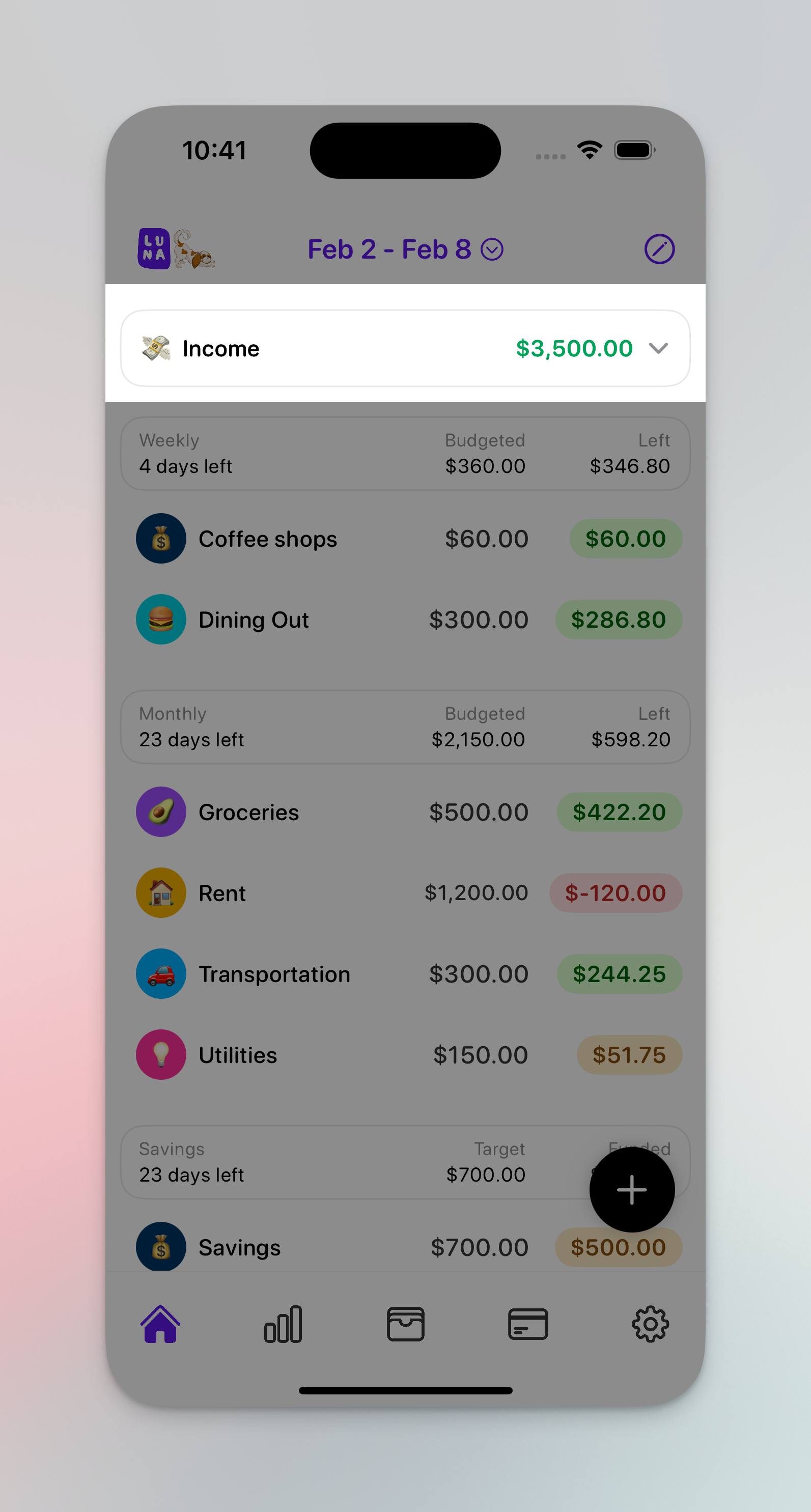
You create categories with budget goals and as you spend money we'll show you if you are over/under your budget for that month/week.

Luna is unique because it lets you create a weekly/monthly budget and shows both to you at the same time.

<figure><img src="/files/HjAIqTrGqH9abNLydKB5" alt="" width="375"><figcaption><p>Budget screen</p></figcaption></figure>

## Weekly vs Monthly budgets

Most budgeting apps just support monthly budgeting, but Luna allows you to create weekly categories as well.

This is great for categories you are more likely to overspend on towards the beginning of the month.

For example: a lot of people make their "eating out" budget a weekly budget rather than a monthly one because it helps them space out their spending evenly throughout the month.&#x20;

$30/week sounds like a lot less than $120/month doesn't it :sweat\_smile:

<figure><img src="/files/a68dRRnZza86FN45E0lL" alt="" width="375"><figcaption><p>Weekly/Monthly budgets</p></figcaption></figure>

## Savings categories and budgeting

Luna was originally built without savings categories in mind (and if the primary purpose is to help you reduce spending, you don't really need to use it).&#x20;

However, some people want to keep track of how much they are saving and you can do that by creating a savings category.

{% hint style="info" %}
This category will appear on the home screen and acts a little differently than the weekly/monthly categories.
{% endhint %}

The amount for these categories is more of a "goal" and when you add expenses to this category its actually a good thing. It means you are "funding" this category rather than taking way from it. So you'll see the right hand column represents how much you have "funded" into the category.

<figure><img src="/files/z484ZHGSsQ6p7mh9f9n5" alt="" width="375"><figcaption><p>Luna savings category</p></figcaption></figure>

## Why would I turn off budgeting?

You can actually turn off budgeting in Luna if you don't need it.

Some people don't actually care setting limits/goals and hitting them but want to use Luna purely as an expense tracker. Just to keep an eye on how much they are spending.

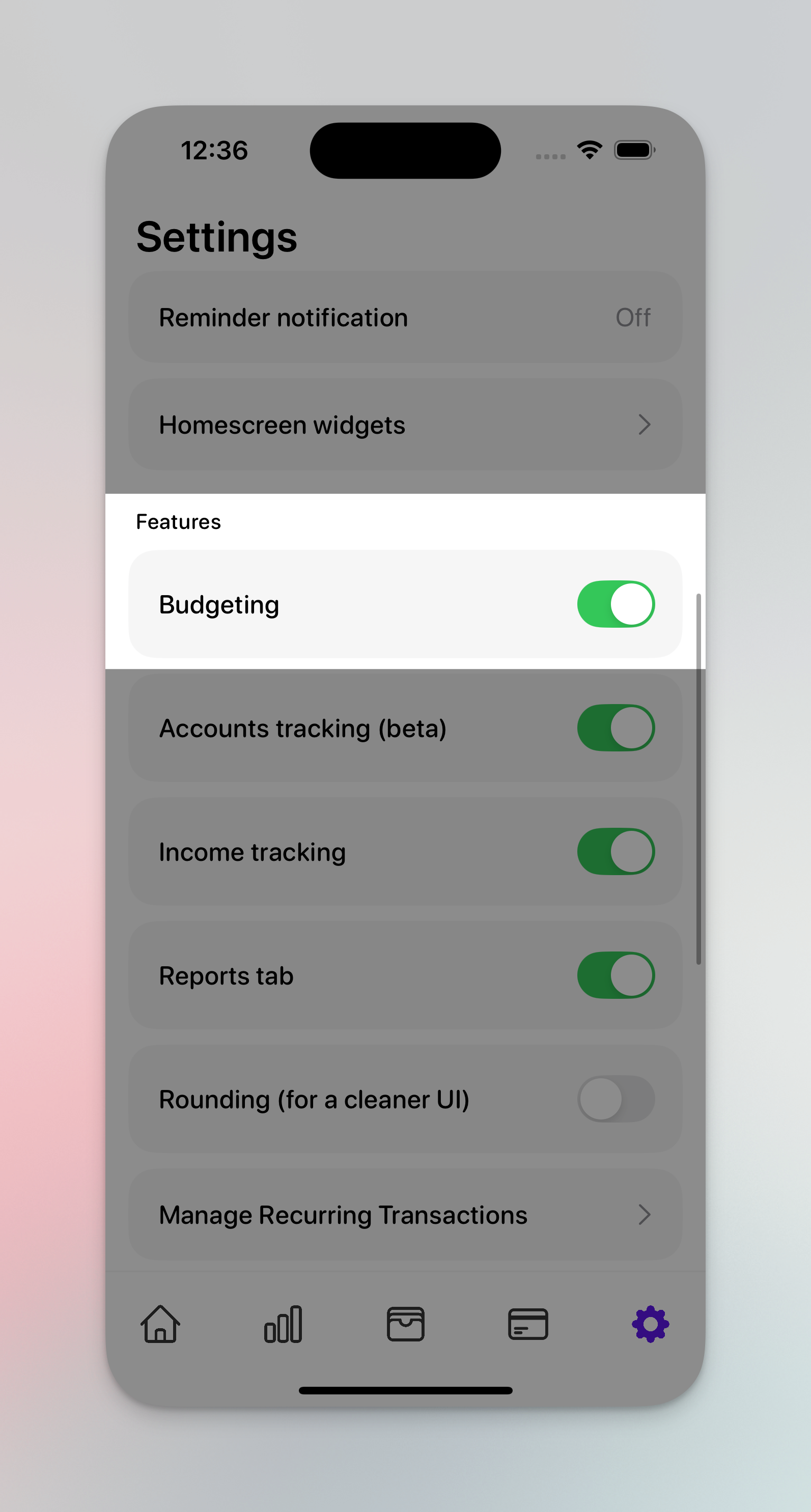
You can do this by turning off in settings. Doing this will remove the "Left" and "Funded" column on the homescreen and remove the "target" amount when creating a category.

{% hint style="info" %}
Turning this on/off will not delete any data. It simply hides it from the interface and you can turn it back on whenver you want
{% endhint %}

<figure><img src="/files/mZ0o4A1yVsQa79u09wre" alt="" width="375"><figcaption><p>Luna homescreen without budgeting</p></figcaption></figure>

<figure><img src="/files/cnLpYYKt4jY49uLJhBjb" alt="" width="375"><figcaption><p>Turn off budgeting in the settings page</p></figcaption></figure>


# Income tracking

Tracking Income (and why you would want to) in Luna

## What is income tracking?

Luna was originally built to help people curb spending, and so this feature wasn't originally in the app.

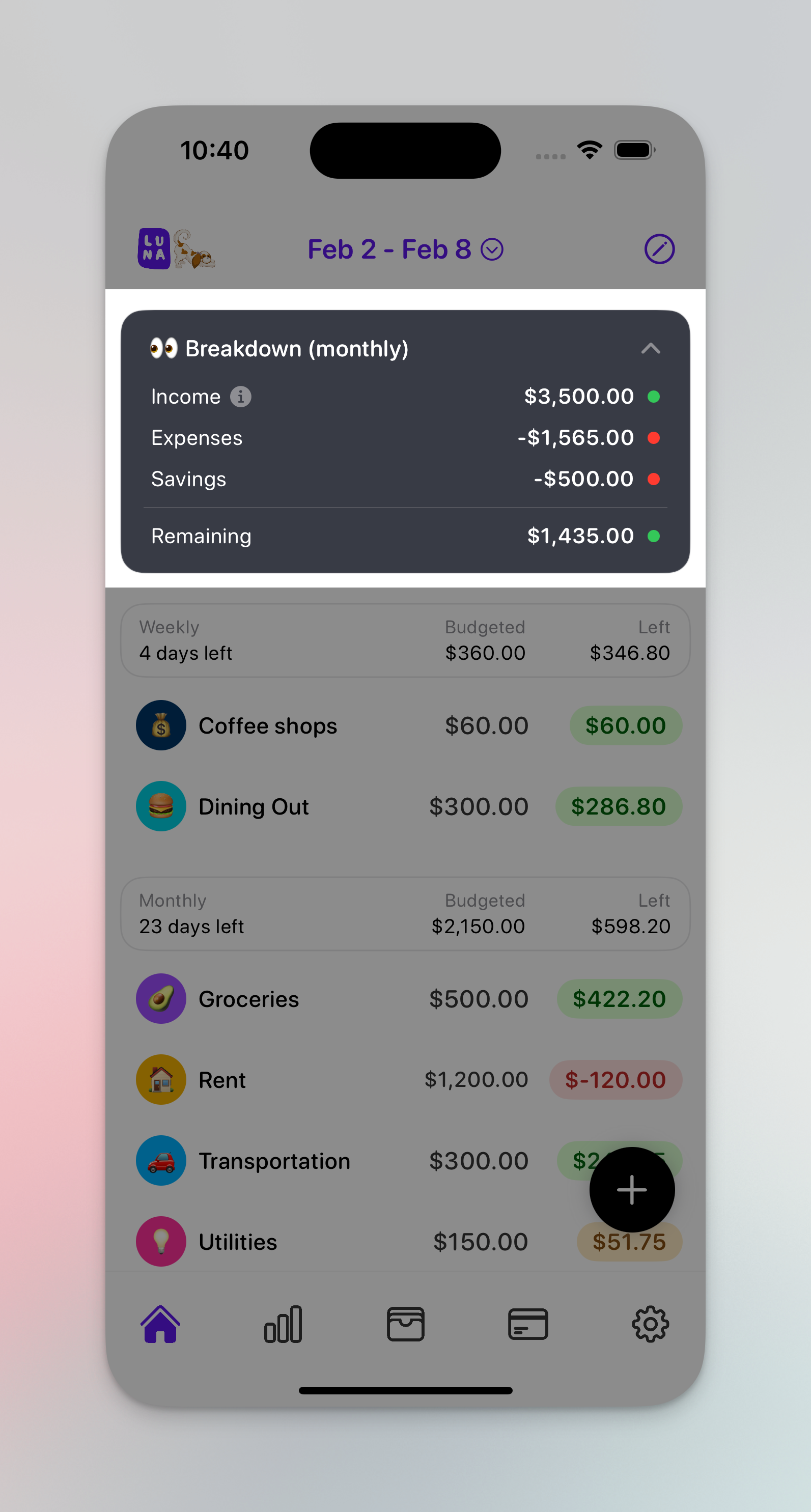
However, people wanted the option to track their income and see how it compared against their expenses.

So this feature lets you simply track how much income you have each month.

<figure><img src="/files/c3VILJ1oPvoVpeiU83ku" alt="" width="375"><figcaption><p>Income tracking</p></figcaption></figure>

<figure><img src="/files/wpRzceAIkLNxTME7C7WW" alt="" width="375"><figcaption><p>Income tracing (Expanded)</p></figcaption></figure>

## How to track income

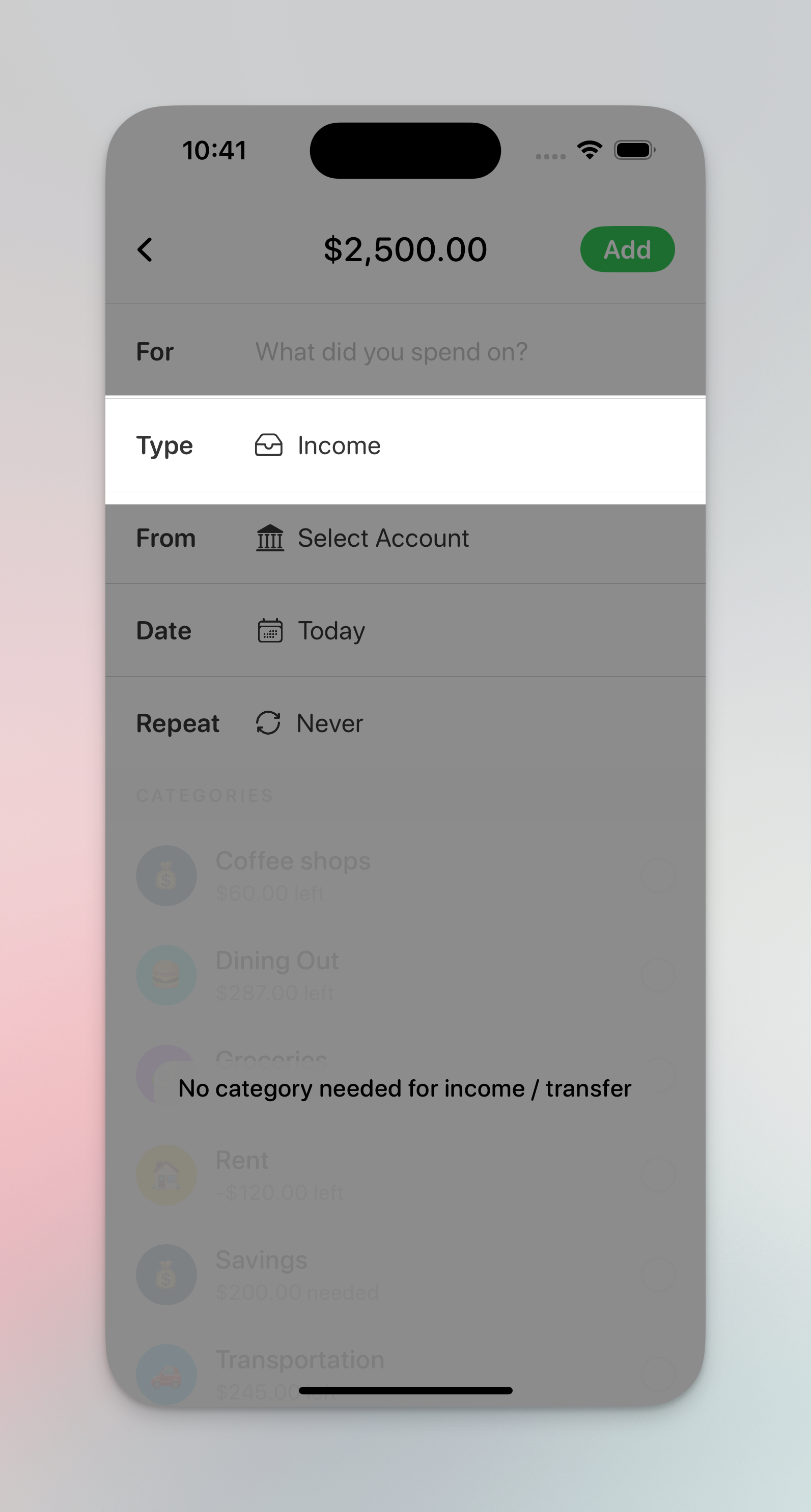
When creating a tranasction change the type to "Income" and it will track this as income.

{% hint style="info" %}
TIP: Use [recurring transactions](/features/recurring-expenses) if you have a fixed amount of income per month if you want to save time from inputting this
{% endhint %}

<figure><img src="/files/5wJwmldBbMk0rpGJvAnH" alt="" width="375"><figcaption></figcaption></figure>

## Turning off income tracking

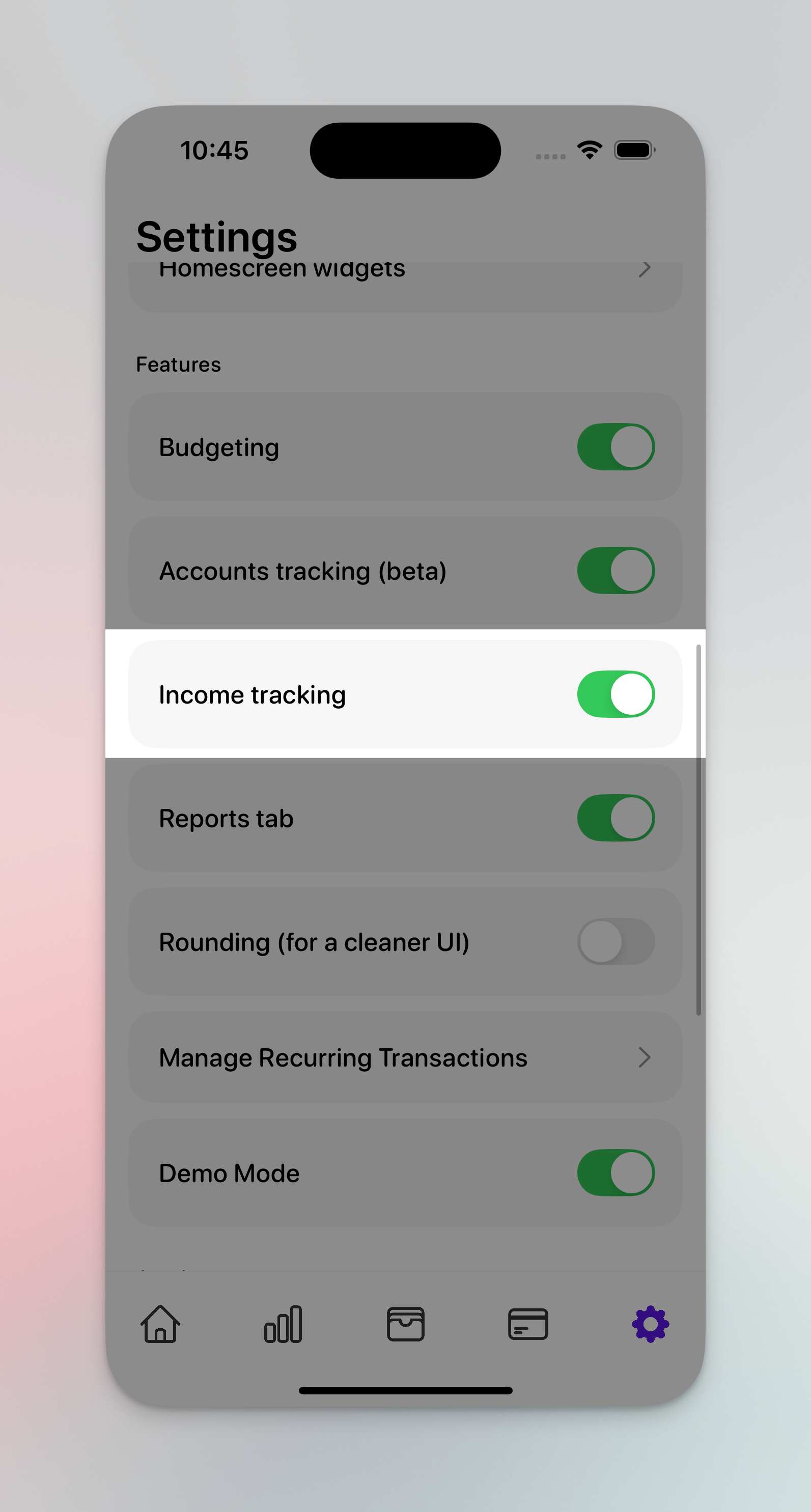
If you don't find the feature useful, you can turn off income tracing in the settings and we will remove it from the UI.

<figure><img src="/files/SB9GjaQfMNFij9bzvfD9" alt="" width="375"><figcaption><p>Turning off income tracking</p></figcaption></figure>


# Savings categories

Track your savings

## What are savings categories?

Luna was originally built without savings categories in mind (and if the primary purpose is to help you reduce spending, you don't really need to use it).&#x20;

However, some people want to keep track of how much they are saving and you can do that by creating a savings category.

<figure><img src="/files/z484ZHGSsQ6p7mh9f9n5" alt="" width="375"><figcaption><p>Savings categories</p></figcaption></figure>

## How do they work?

{% hint style="info" %}
This category will appear on the home screen and acts a little differently than the weekly/monthly categories.
{% endhint %}

The amount for these categories is more of a "goal" and when you add expenses to this category its actually a good thing. It means you are "funding" this category rather than taking way from it. So you'll see the right hand column represents how much you have "funded" into the category.

## How to create a savings category

<figure><img src="/files/UjgShYK9N6QCu110zoUL" alt="" width="375"><figcaption><p>Creating savings categories</p></figcaption></figure>

## How savings categories work with accounts

Luna has a feature that allows you to [track accounts](/features/account-tracking) like bank accounts and credit cards.

Transactions in savings categories can be linked to an account BUT they will not impact the account balance. This is because most people tracking savings aren't actually spending the money (or moving it around) but instead just making a note of it.

{% hint style="info" %}
If you want this to function differently, feel free to open a feedback item on the [feedback board](/getting-started/the-feedback-board)!
{% endhint %}

If you select a savings category and an account at the same time, we'll display a warning that it won't impact this accounts balance.

<figure><img src="/files/eLvK96GZO0Y9BKpm4LHE" alt="" width="375"><figcaption><p>Savings account warning</p></figcaption></figure>


# Account tracking

Track bank accounts, credit cards and cash

## What is account tracking?

If you want a better view of your finances (and more peace of mind) you can track accounts like bank accounts and credit cards in Luna.

{% hint style="info" %}
Account tracking is manual so we do not automatically pull transactions or balances (for now)
{% endhint %}

<figure><img src="/files/qUaRjQkntfhAn2XWjU97" alt="" width="375"><figcaption><p>Accounts</p></figcaption></figure>

## Bank accounts vs Credit Cards

Bank accounts function as you would expect, as you spend money the balance goes down.

Credit cards are a bit different because as you spend money, the balances goes up!

Once you pay off your credit card, the balance goes back to $0 (or however much you paid).

<div><figure><img src="/files/WKuUlv3Q7l9nWef51LIB" alt=""><figcaption><p>Bank account</p></figcaption></figure> <figure><img src="/files/RnBs5mOol7cU6VZpUwQG" alt=""><figcaption><p>Credit card</p></figcaption></figure></div>

## How to pay off credit card

To pay off credit cards, you need to make a transfer (from a bank account to the credit card account).

To make a transfer, create a new transaction and select "Transfer" as the type

If you don't want to make a transfer, you can also do a manual adjustment and make the note that you made a credit card payment. More on adjustments below!

## What are adjustments

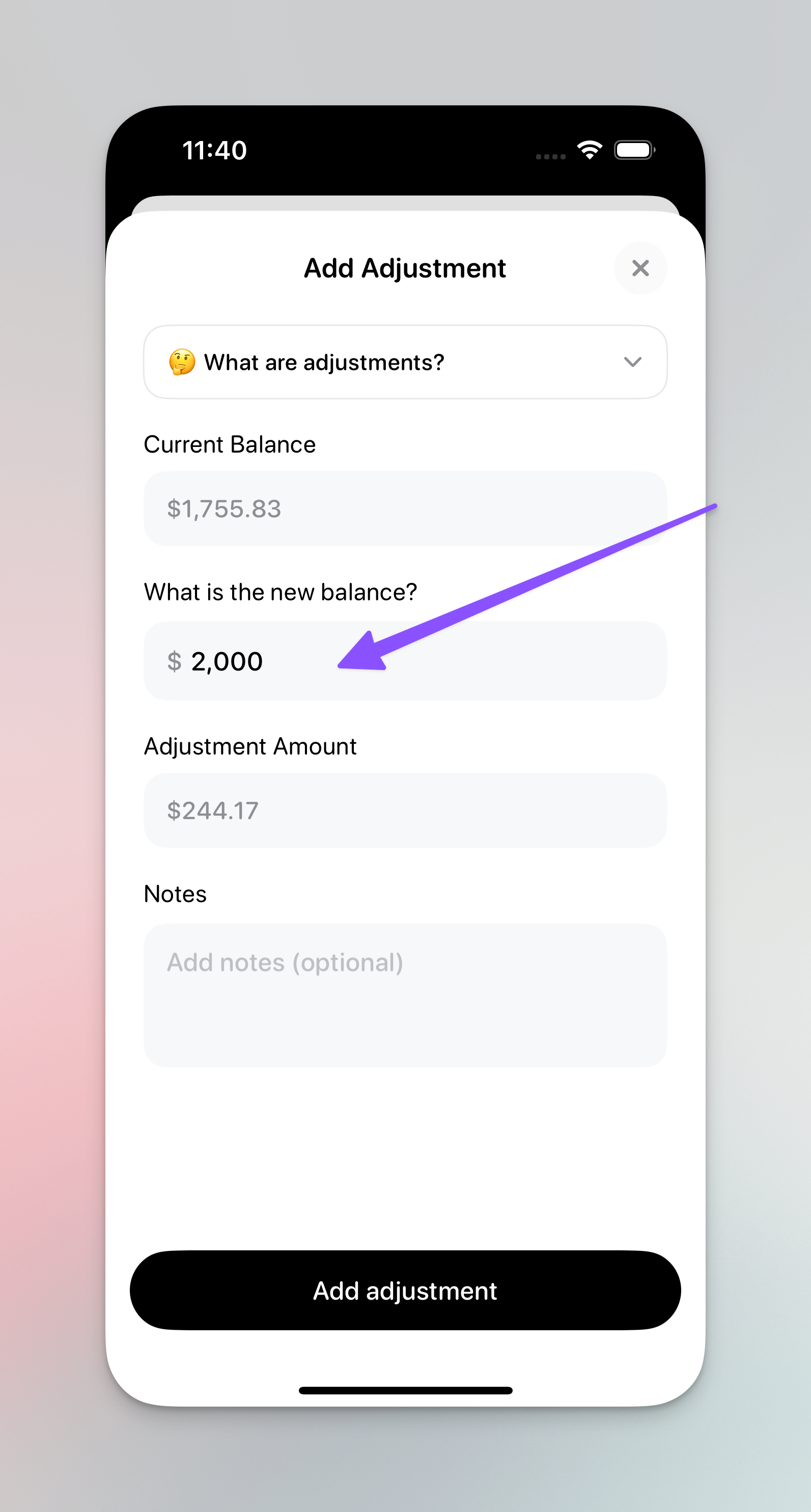
Adjustments let you manually change the account balance in cases where the balance in Luna doesn't match the balance in real life.

This is useful if:

1. There is a transaction you can't find (or you don't want to go back and track it)
2. It's been a while since you used Luna and you don't want to go back and enter all those transactions

Click "Add adjustment" at the top right of the account and we'll ask you for the new balance.

Once you enter that, we'll make an adjustment and you'll see it on the account.

<div><figure><img src="/files/Acz5mDMT1gX6Wr3JffEa" alt=""><figcaption><p>Add adjustment button</p></figcaption></figure> <figure><img src="/files/tLeTBXJNecNH437TW8dT" alt=""><figcaption><p>Add adjustment screen</p></figcaption></figure> <figure><img src="/files/e9OcQuOMIJlY5evtJyWR" alt=""><figcaption><p>Adjustment log</p></figcaption></figure></div>

{% hint style="info" %}
Adjustments are NOT a bad thing. You are not doing anything wrong if you are using this feature often :fingers\_crossed:
{% endhint %}


# Reports

Your spending habits, visualized

## What are reports?

Reports are meant to show you patterns in your spending (and then if something looks off, you can make a change!)<br>

<figure><img src="/files/D48wK9zEfNyDo9d9A8Yd" alt="" width="375"><figcaption><p>Luna reports</p></figcaption></figure>

## Monthly Spend vs Budget

This report shows you how much money you've currently spent and then a line that shows your current budget (spread out evenly over the month)

This is helpful for you to quickly see if you are on track to stay within your budget.

In the example below, the user had a huge emergency expense at the start of the month that put them super out of budget almost immediately.

<figure><img src="/files/QmQsA0AMgnwoJrO9JWoW" alt="" width="375"><figcaption><p>Montly spend vs budget</p></figcaption></figure>

## This month vs Last month

A chart that shows you what you spent last month (gray line) and what you've currently spent this month (purple line)

<figure><img src="/files/pKR2wmMDDhm2RZdkp4mF" alt="" width="375"><figcaption><p>This month vs last month graph</p></figcaption></figure>

## Monthly spend (last 7 months)

A bar chart that shows your spending over the last 7 months. Great to see if anything has changed in your spending habits over a longer period of time.

<figure><img src="/files/vU6Rp9YBqOpe2oLwUuDM" alt="" width="375"><figcaption><p>Monthly spend graph</p></figcaption></figure>

## Interacting with charts

{% hint style="info" %}
At the moment, charts cannot be interacted with but that's coming soon! You'll be able to drill down into the details and analyze patterns in your spending
{% endhint %}


# Customization

Make Luna match your workflow!

## What do you mean customize?

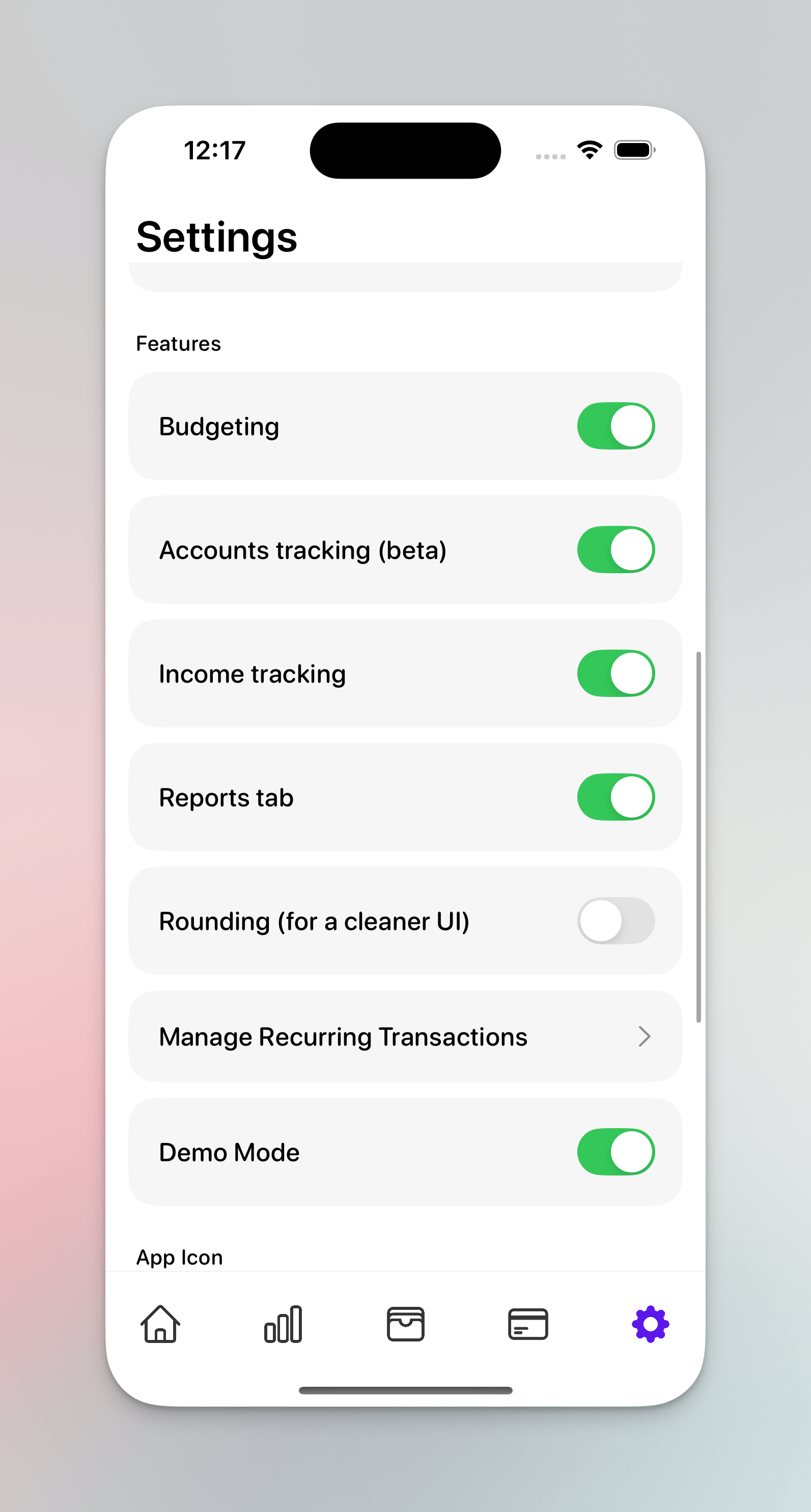
Luna allows you to choose which features are on/off so you can tailor your experience.

Don't want to use accounts? Turn if off!

Using it as an expense tracker? Turn off budgeting!

<figure><img src="/files/b5EOpMtkA2KZoYFNQ7aX" alt="" width="375"><figcaption><p>Feature toggles</p></figcaption></figure>


# Recurring expenses

Save time by automatically creating transactions at a set interva

## What are recurring expenses?

Recurring expenses are transactions that occur at a regular basis. This is helpful for logging things like rent, a gym membership or subscriptions.

<figure><img src="/files/Rt8ziIOSxv7qx1HviCkq" alt="" width="375"><figcaption><p>Recurring expense</p></figcaption></figure>

## How to create a recurring expense

When creating a transaction press the "Repeat" button and a few options to make the transactions recurring should appear.

<div><figure><img src="/files/6RXVPZgWSTHof8PGmKTo" alt=""><figcaption><p>Repeat expense button</p></figcaption></figure> <figure><img src="/files/U6OgQOhx5SWmDurrNJMK" alt=""><figcaption><p>Repeat options</p></figcaption></figure></div>

## Managing recurring expense

You can view all your recurring expense by going to Settings -> Manage recurring transactions

From here, you can edit the expense OR delete them.

When you edit them, you'll be warned that this will impact future transactions.

<div><figure><img src="/files/Nl4Ig3r3wviQnXO8YQ1S" alt=""><figcaption><p>Manage recurring transactions</p></figcaption></figure> <figure><img src="/files/XOa1giL5EZzbxkvIp7hu" alt=""><figcaption><p>A view of all your recurring transactions</p></figcaption></figure></div>


# iOS Widgets

Your spending, at a glance

## Homescreen widgets

Luna comes with a few homescreen widgets.

There is a weekly widget that shows just your weekly categories and a monthly widget that shows your monthly spend.

{% hint style="info" %}
The weekly shows JUST weekly. The monthly shows the combined weekly and monthly categories. Income and savings categories are ignored.
{% endhint %}

<figure><img src="/files/IKNFFVr2h0KnjqjMOLLq" alt="" width="375"><figcaption><p>Weekly budget widget</p></figcaption></figure>

## Lockscreen widget

The lockscreen widget shows you your spending at a glance.

{% hint style="info" %}
TIP: Clicking this widget automatically opens the new transaction window. It is the fastest way to log a transaction (we recommend building this habit)
{% endhint %}

<figure><img src="/files/Yf8jYu5XH0sv2jGaRO1n" alt="" width="375"><figcaption><p>Lockscreen widget</p></figcaption></figure>


# Reminders

Reminders to help you build the habit

## What are reminders

Luna is most effective when you use it for every transaction.

Reminders help you if you need that little nudge to log your transactions.

You can choose the level of frequency depending on how strong of a nudge you need.

<figure><img src="/files/0wmuTGbdDvLFMRddNT10" alt="" width="375"><figcaption><p>Luna reminders</p></figcaption></figure>


# Currencies

Change the currency in Luna

Luna supports a wide range of currencies with more added every month.

<figure><img src="/files/fjCn3i6tR4cnMpbJJXof" alt="" width="375"><figcaption><p>Choose your currency</p></figcaption></figure>

{% hint style="info" %}
Don't see your currency? Request it on the [feedback board](/getting-started/the-feedback-board)!
{% endhint %}


# Fresh start mode

Sometimes it helps to start over

## What is fresh start mode?

Haven't used Luna in months and want to start over?

Fresh start mode lets you clear your account and start from the beginning. This is helpful if you haven't used it in a while OR you're just looking to rebuild your budget from the ground up.

<figure><img src="/files/XRdtCArlMwlOfSUd5Ftw" alt="" width="375"><figcaption><p>Fresh start mode</p></figcaption></figure>

{% hint style="danger" %}
This action cannot be undone. There is no way to recover your data once its deleted
{% endhint %}


# Should I use savings categories?

Some people don't need it!

## What are savings categories?

Luna was originally built without savings categories in mind (and if the primary purpose is to help you reduce spending, you don't really need to use it).&#x20;

However, some people want to keep track of how much they are saving and you can do that by creating a savings category.

<figure><img src="/files/z484ZHGSsQ6p7mh9f9n5" alt="" width="375"><figcaption><p>Savings categories</p></figcaption></figure>

## Should I turn this off?

Most people exclusively live in the weekly/monthly categories section on Luna.

If you are trying to reduce your spending and really want to focus on just that, I recommend not using savings categories.

In theory, if you get your spending in order, the savings should naturally happen.

## How do I turn it off?

Simply archive or delete any savings categories and the section will not appear on the home screen :)


# Using Luna just as an expense tracker (no budgeting)

You can actually turn budgeting off!

## Why would I turn off budgeting?

You can actually turn off budgeting in Luna if you don't need it.

Some people don't actually care setting limits/goals and hitting them but want to use Luna purely as an expense tracker. Just to keep an eye on how much they are spending.

You can do this by turning off in settings. Doing this will remove the "Left" and "Funded" column on the homescreen and remove the "target" amount when creating a category.

{% hint style="info" %}
Turning this on/off will not delete any data. It simply hides it from the interface and you can turn it back on whenever you want
{% endhint %}

<figure><img src="/files/mZ0o4A1yVsQa79u09wre" alt="" width="375"><figcaption><p>Luna homescreen without budgeting</p></figcaption></figure>

<figure><img src="/files/cnLpYYKt4jY49uLJhBjb" alt="" width="375"><figcaption><p>Turn off budgeting in the settings page</p></figcaption></figure>

## When should I turn off budgeting?

If you get overwhelmed with constraints or are comfortable keeping the budget in your head, you can turn it off.

By turning off budgeting, the interface gets simpler and you can be even more focused when using the app.